Set up WotLK on an Apple Silicon Mac
MoBetta is a Wine engine that stops the character-select crash (ERROR #132, illegal instruction) and runs 3.3.5a at 85–190 FPS on an M3. It changes nothing in your game folder and injects nothing into the game. This guide sets up a new Porting Kit port with it.
Other tools already run 3.3.5a on Apple Silicon. The best known, WoWSilicon, is a full launcher with addon and mod managers. It gets there by patching the game folder: for 3.3.5a it adds d3d9.dll, mtld3d.conf, libDllLdr.dll and DLLs under mods/, lists them in dlls.txt, and patches the game's own DivxDecoder.dll so those DLLs load into the game.
MoBetta is for players who want the client left exactly as Blizzard shipped it:
- The game folder is untouched. No files added, none patched. Every file is checked by SHA-256 before and after each test.
- Nothing is added to the game process. No extra DLLs, no DLL loader, no hooks or patches in the game's code. The crash fix lives in Wine's own exception handling.
- It's an engine, not a launcher. Your Porting Kit port switches to it in a few clicks, and switching back undoes it.
- Open and reproducible. Built from pinned sources; anyone can rebuild the release and compare.
MoBetta can't promise how any server's rules or anti-cheat treat a Mac client. What it does promise is an unmodified client. If you'd rather have an all-in-one launcher with addon management, WoWSilicon is a good choice.
- An Apple Silicon Mac (M1 or later) with Rosetta 2. If macOS never asked you to install it, run
softwareupdate --install-rosettain Terminal. - Porting Kit or Wineskin Winery installed. This guide uses Porting Kit; with Wineskin Winery on its own, pick
WS12WineCX26.3_Mobettawhen you create the wrapper, or switch an existing one as in Switch a port. - The WoW 3.3.5a client (build 12340), for example Warmane's download.
Do this after Porting Kit or Wineskin Winery is installed: installing one of them creates the Engines folder.
- Download
WS12WineCX26.3_Mobetta.tar.7zfrom the latest release. - Move it, still packed, into
~/Library/Application Support/Wineskin/Engines/. Do this before you start the port, so Porting Kit lists the engine in step 4. If you skip it, pick a temporary engine in step 4 and switch afterwards (Switch a port).
Can't see Library? It's a hidden folder. In Finder use Go > Go to Folder… and paste the path, or press Shift + Cmd + . to show hidden folders.
Recommended: check the download. Also download SHA256SUMS from the release, then in Terminal, in the folder with both files, run shasum -a 256 -c SHA256SUMS. It must print WS12WineCX26.3_Mobetta.tar.7z: OK.
1Put the game in its own folder
Create a folder for the game, for example ~/Games/WoW-3.3.5a, and put the whole client in it (the folder with Wow.exe). The port doesn't copy the game; it runs Wow.exe from here. Don't move or rename this folder after the port is set up.
2Start a custom port
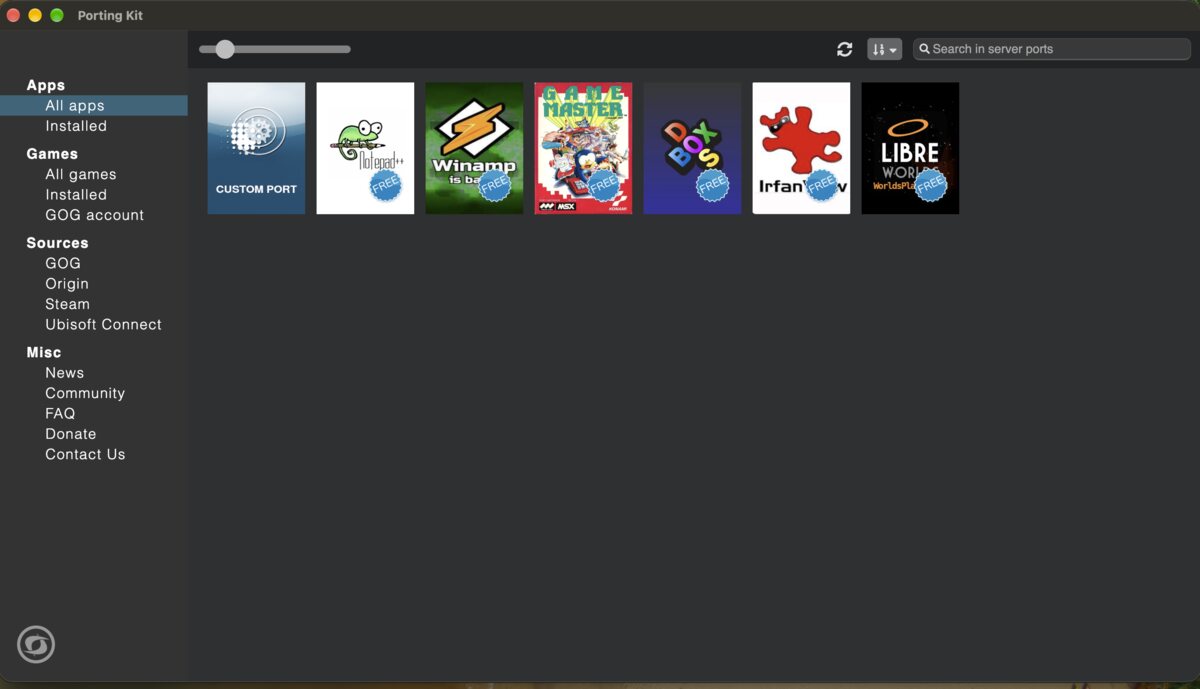
Open Porting Kit, select All apps in the left menu and click Custom Port.
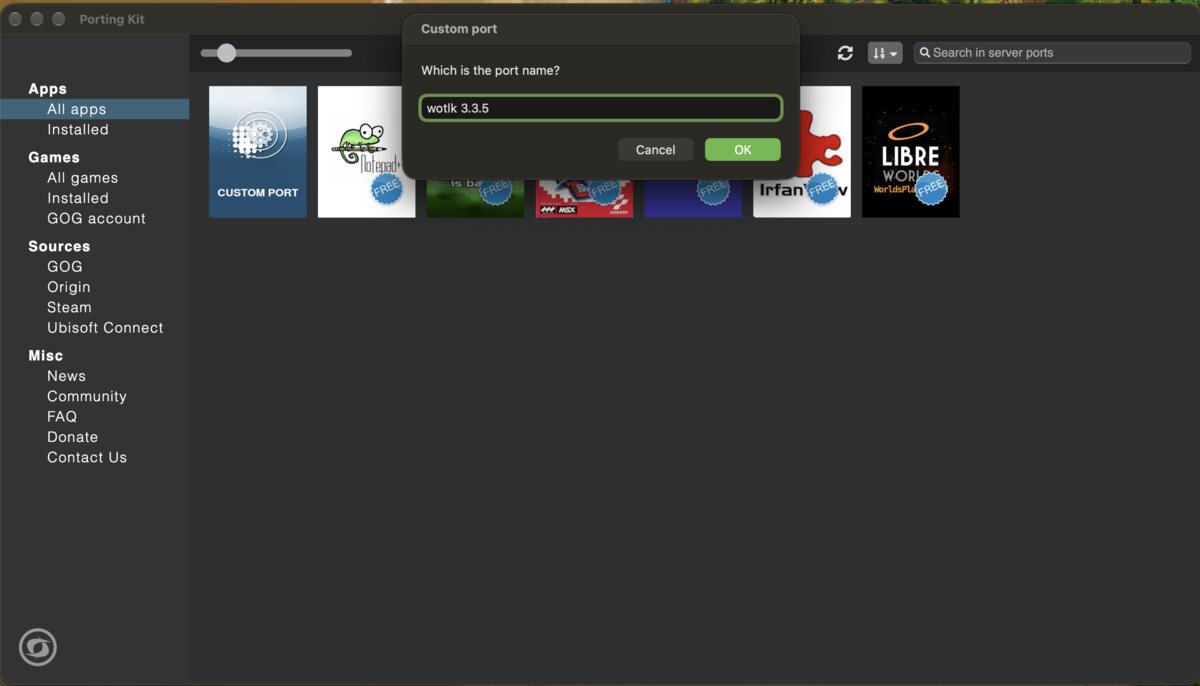
Type a name for the port, for example wotlk 3.3.5, and click OK.
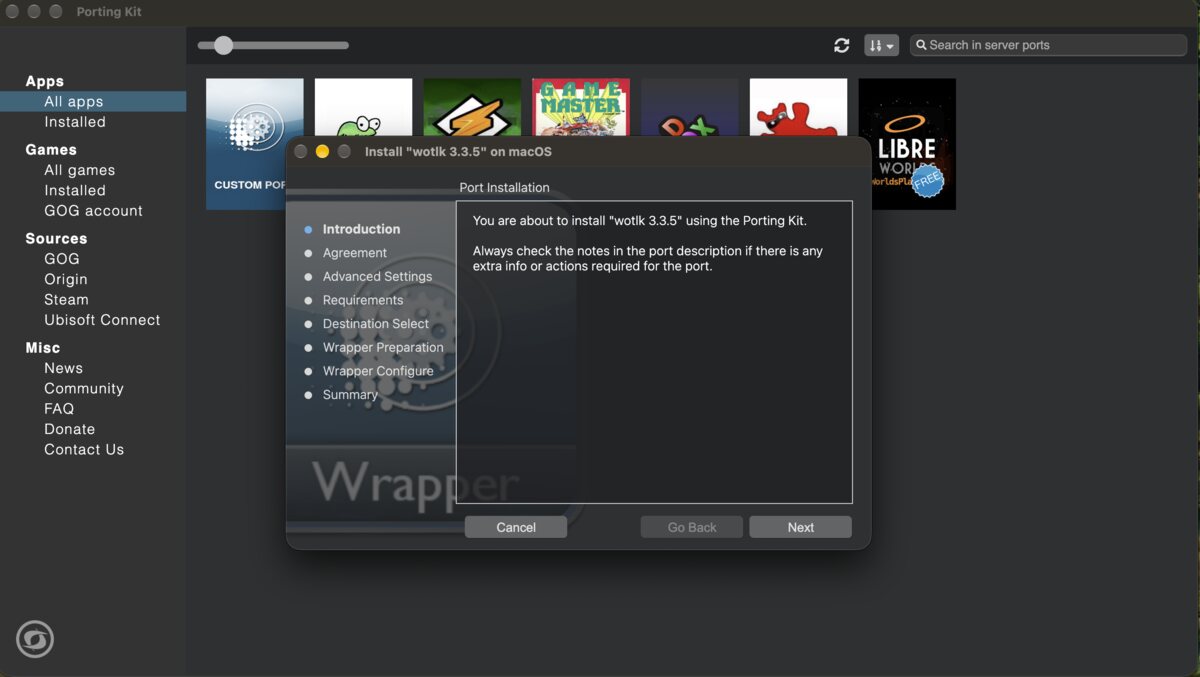
3Introduction and Agreement
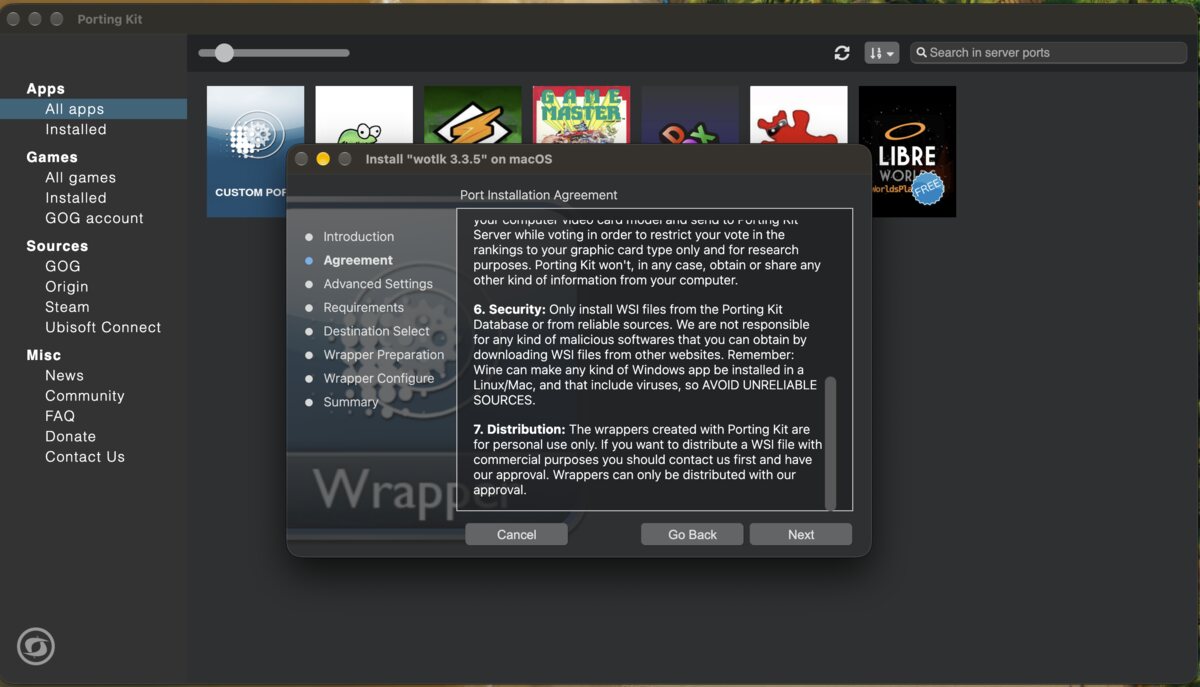
Click Next through the Introduction, read the Agreement, and click Next.
4Advanced Settings: pick the engine
Open the Engine list and pick WS12WineCX26.3_Mobetta.
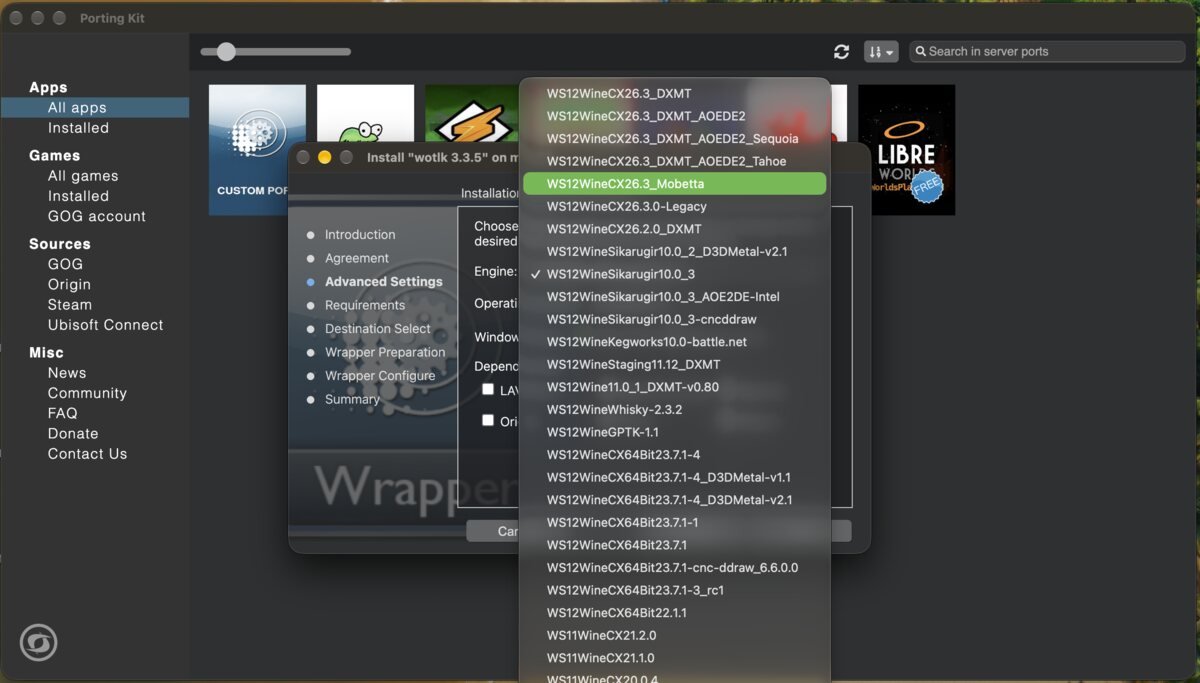
Not in the list? The engine file isn't in the Engines folder yet (see Add the MoBetta engine). Pick WS12WineCX26.3_DXMT (the engine MoBetta is built on) for now, and switch to MoBetta when the port is done (Switch a port).
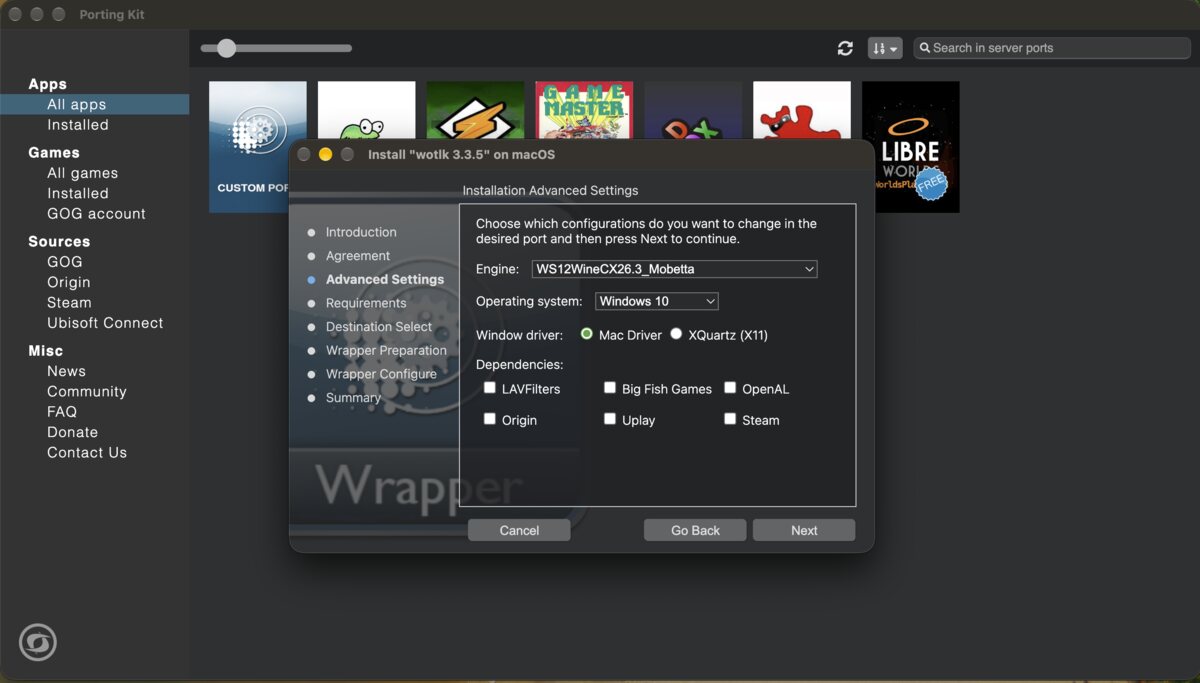
Leave the rest as it is (Windows 10, Mac Driver, no extra dependencies) and click Next.
5Requirements
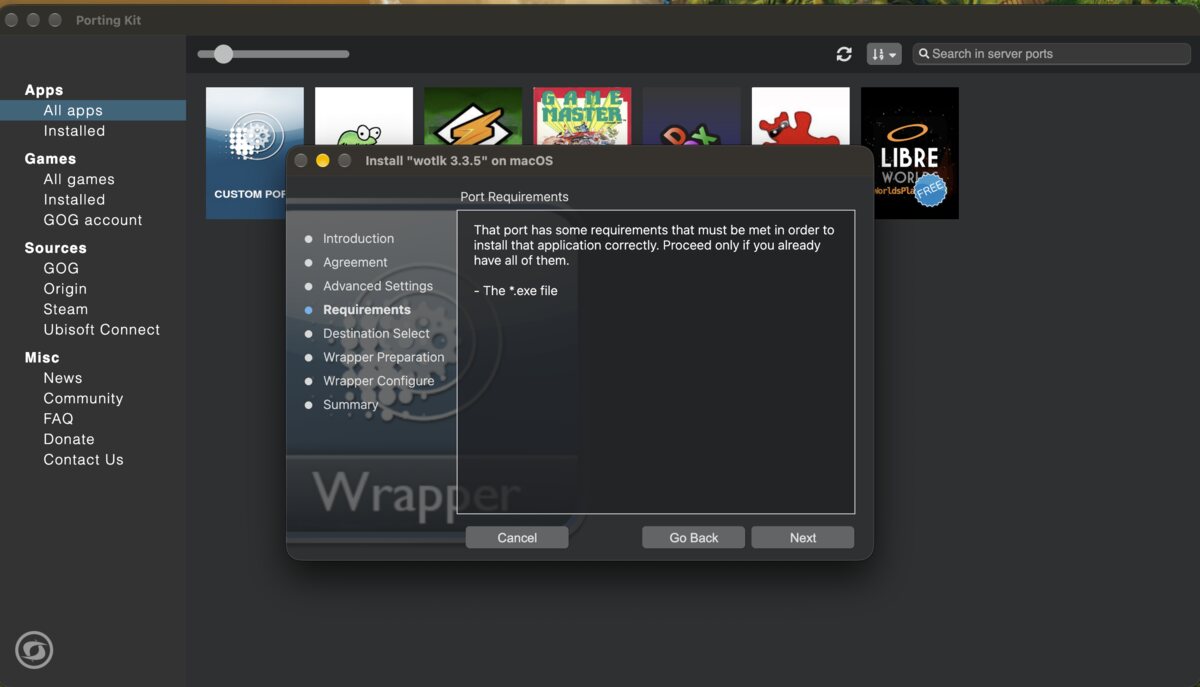
This screen only reminds you that you need the game's .exe. Click Next.
6Destination Select
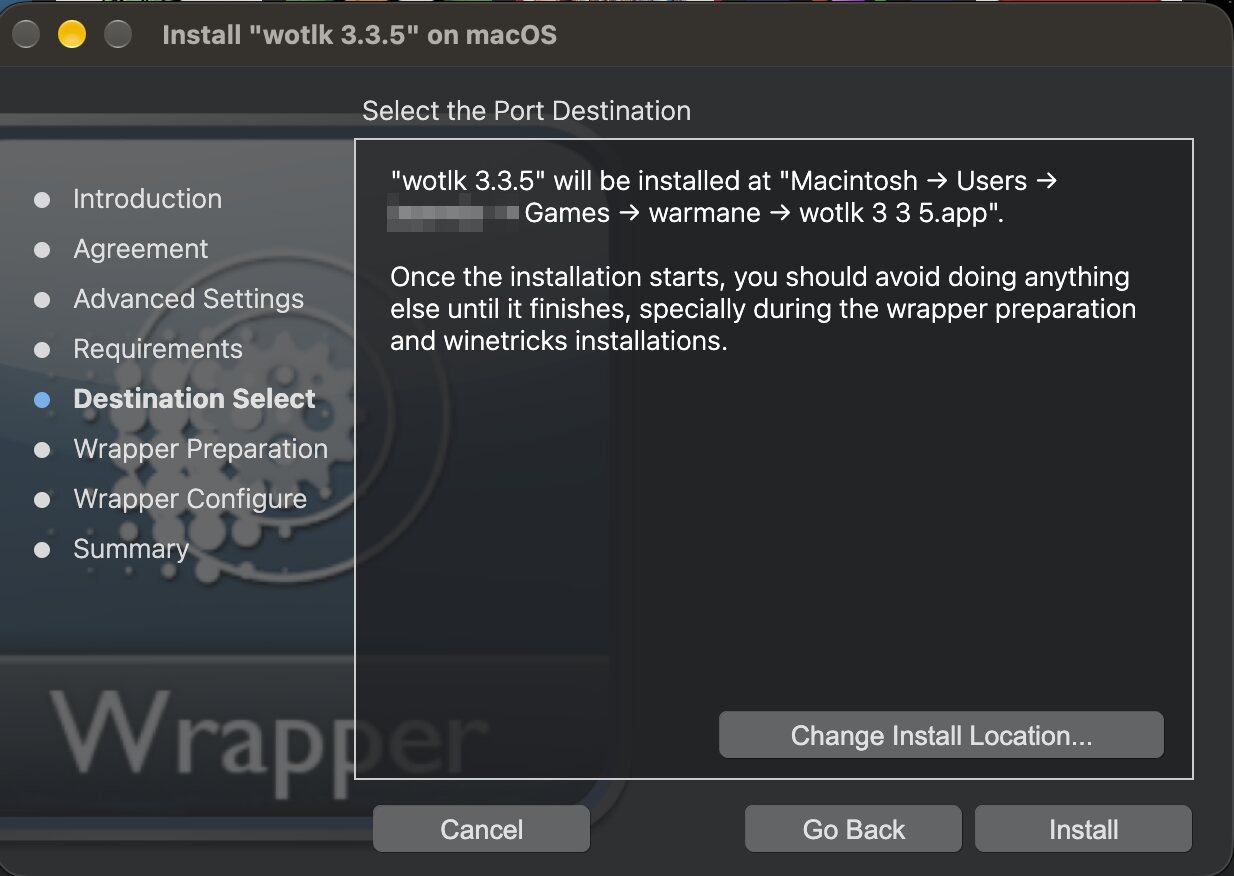
This is where the port app itself is saved. Keep the default or click Change Install Location…. It's a different place from the game folder in step 1. Click Install.
7Select Wow.exe, then let it install
When Porting Kit asks for the program to run, go to your game folder and select Wow.exe.
Porting Kit now prepares the wrapper and installs what it needs. This takes a few minutes; leave the Mac alone meanwhile. At some point the game starts and its window appears. Quit the game so the setup can finish.
8Select Wow.exe again
Porting Kit asks once more for the game's executable, this time for what the port launches. Go to the game folder again and select Wow.exe. The port is done.
9Play, and turn off Vertical Sync
Start the port from where you saved it in step 6. In game, open the menu (Esc) > Video and untick Vertical Sync. With it on, the frame rate is held to your display's refresh rate; with it off, MoBetta runs well past that.
If you picked a temporary engine in step 4, or already have a working port:
- Put the engine file in the Engines folder (see Add the MoBetta engine).
- Quit the game. In Finder, right-click the port's app and choose Show Package Contents.
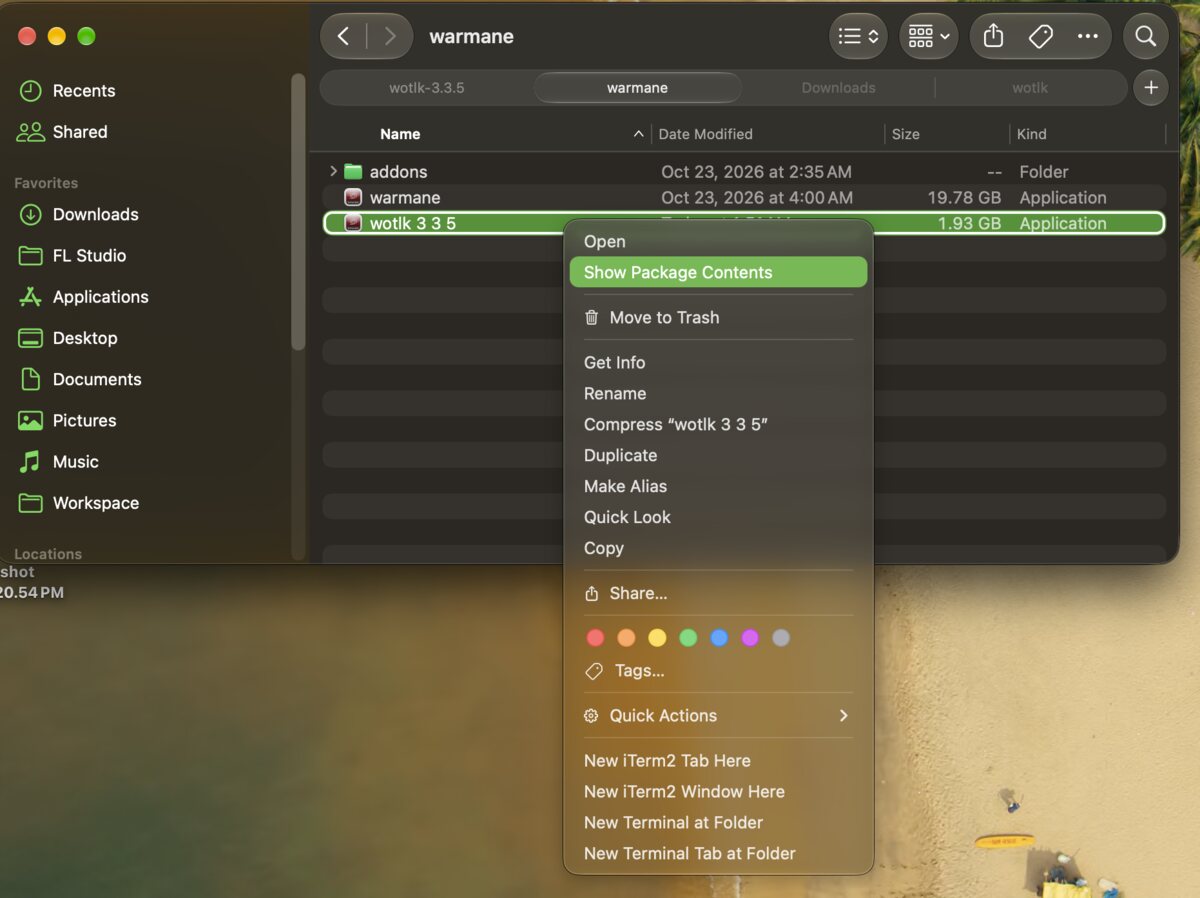
- Open
Contents, then open Wineskin.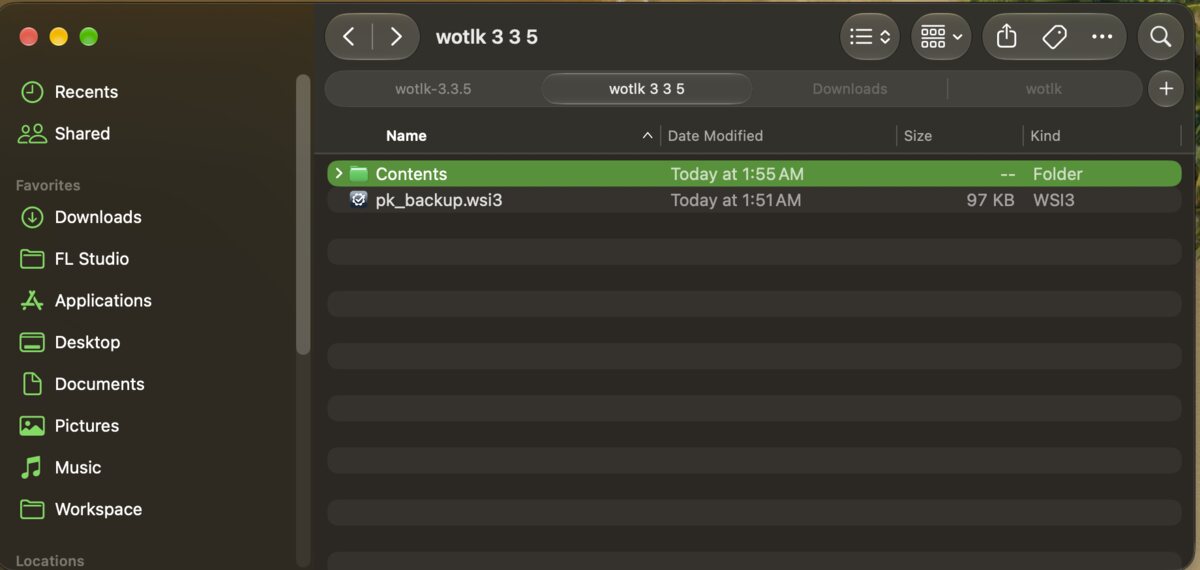
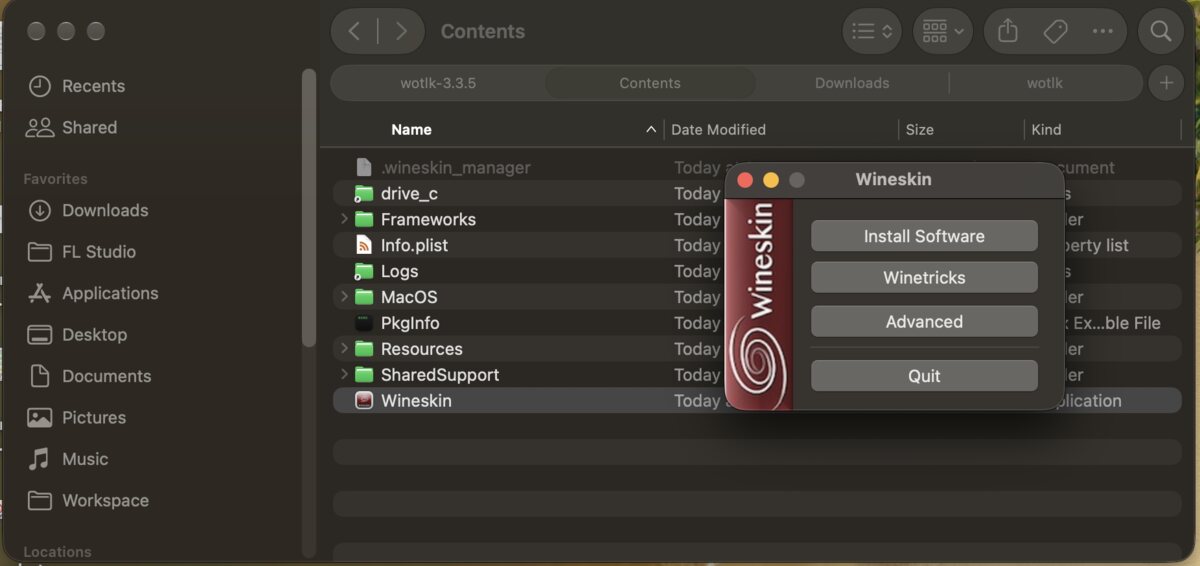
- Click Advanced, open the Tools tab and click Change Engine Used.
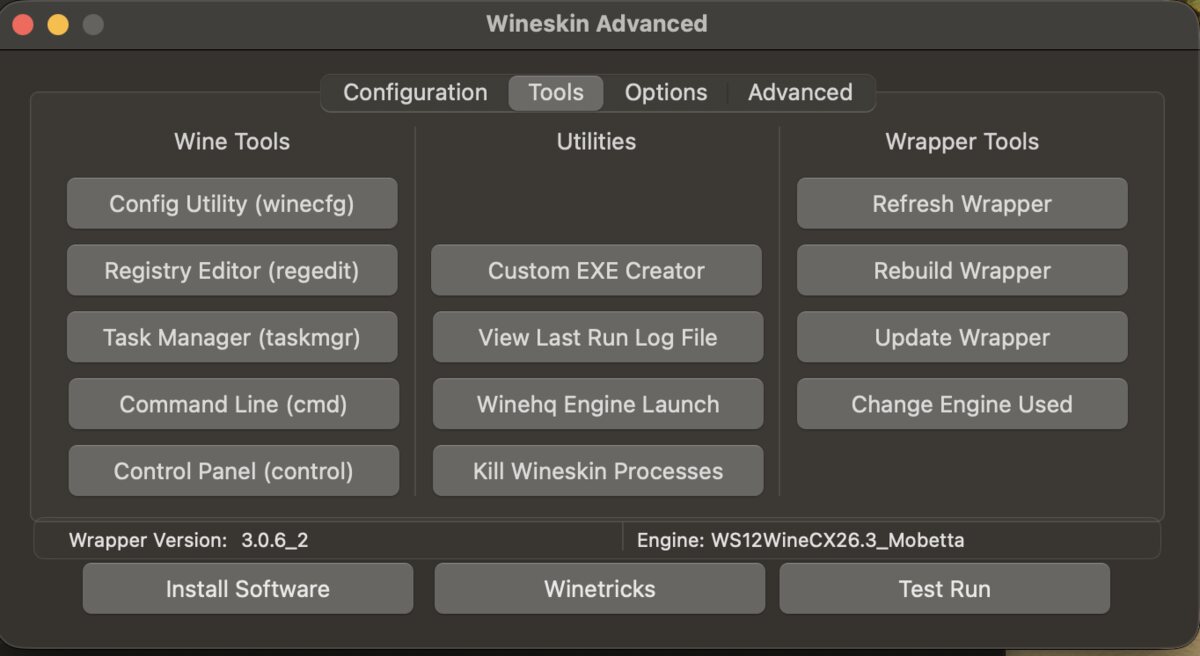
- Pick WS12WineCX26.3_Mobetta and click OK. The Tools tab then shows
Engine: WS12WineCX26.3_Mobetta.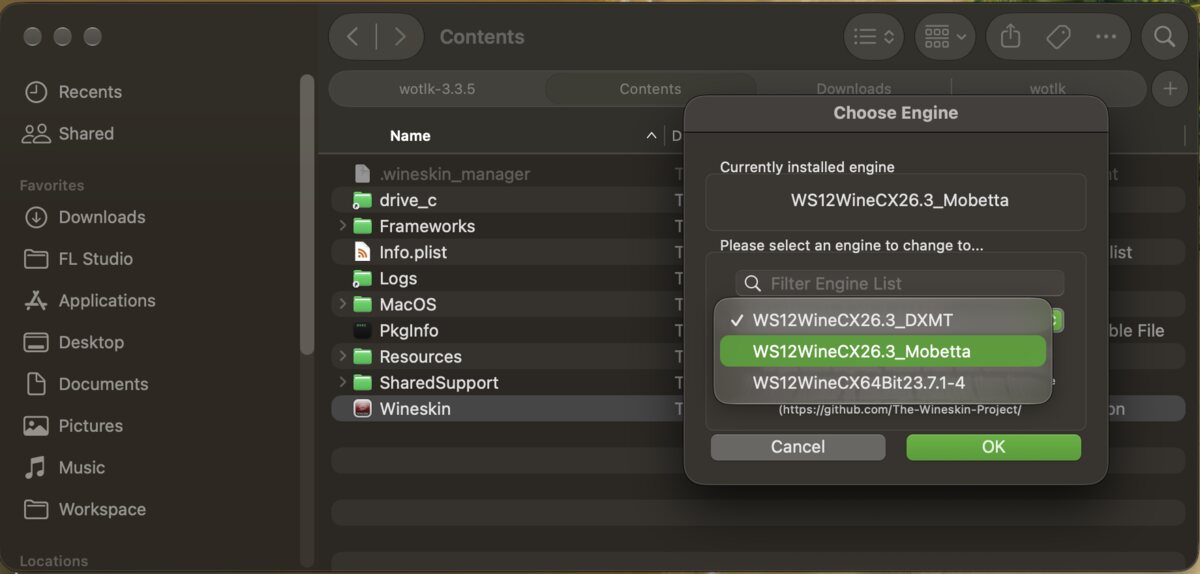
- Start the game as usual. The first start on the new engine updates the port's Wine setup once.
To go back, change the engine to the one the port had before (usually WS12WineCX26.3_DXMT).
Use at your own risk. MoBetta is LGPL 2.1+ and is not affiliated with Blizzard, Warmane or CodeWeavers. Project, source and FPS screenshots: github.com/rawdata369/MoBetta.