Where did my space go? A disk space analyzer for the Mac, by RawData Studio.
Mac Deficit shows you, the moment it opens, what is filling your Mac's drive, and lets you clear it safely. It is built for Macs on Apple Silicon, and for anyone who has watched a 256 GB or 512 GB drive fill up and found macOS's own Storage panel no help. In development; no release date yet.
- 00 Foundations
- 01 The Scanner
- 02 Seeing Your Drive
- 03 The Apple Treemap
- 04 Audit and Overhaul
- 05 Clearing Space
- 06 Polish and Release
00 Foundations Complete 1/1
- A native Mac app window, built on Apple Silicon
01 The Scanner Complete 3/3
- Every drive found with its name, capacity and free space
- A scan of a whole drive, cancellable, that carries on past folders it may not read
- Whole-drive scans that never hang on macOS's special folders, and finish fast
02 Seeing Your Drive Complete 4/4
- Choose a drive, scan it, watch the progress, see a summary
- A sorted file list with folder navigation and a breadcrumb
- A guided Full Disk Access flow
- A crash report kept and noted at the next launch
03 The Apple Treemap Complete 2/2
- The first Apple Treemap: blocks by size inside an apple, coloured by file type, with a legend
- Click to go deeper, hover to highlight, switch between treemap and list
04 Audit and Overhaul Complete 19/19
- A full review of the code
- The right technology chosen: a native Swift interface over the Rust scanner
- Real size on disk, each hard-linked file counted once, matching what macOS reports
- A scanner that counts every folder, system data included
- Folders macOS keeps private are kept and marked, not silently left out, matching the system's own list
- A scanner that uses every core: a whole drive in 9 seconds instead of 40
- Leaner scan results: put together twice as fast, with about a quarter less memory at the peak
- A scanner that reads each folder in one go: half the memory again, the same results
- The scanner packaged as an engine the native app can drive: start, follow, cancel and ask, at full speed
- The new native Mac app: drives, Full Disk Access or limited access, scanning and results, with the scanner inside it
- The Apple Treemap in the native app, folders coloured by what fills them
- One native app: the first interface retired, the app's own log, and a problem noted at the next launch
- Every block held inside the apple
- The apple filled with cells, the biggest in the middle
- The app's own icon: an apple ripening from gold to red
- An apple that looks like one
- Your drives shown as apples
- The apple holds still when something goes to the Trash
- The apple's last touches: tapered to the tip, names on more of its cells, and a calm loading apple
05 Clearing Space Complete 5/5
- Reveal in Finder
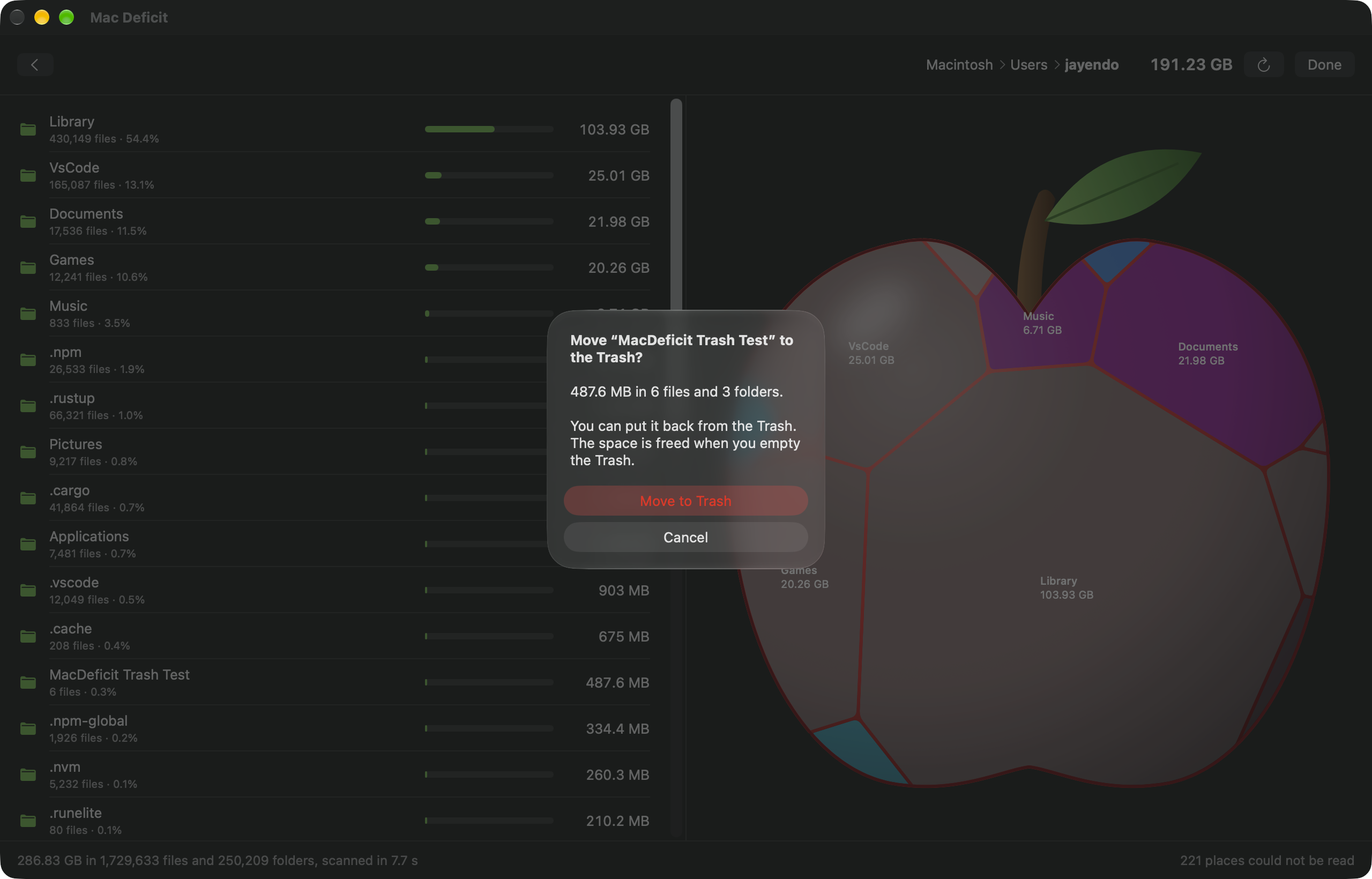
- Move to the Trash, with the space it frees shown first, and Put Back
- What your Mac needs never offered for deletion
- Notices changes made outside the app, and catches up with one click; quiet while macOS writes its own files
- Clear several things at once, and delete immediately when you are sure
06 Polish and Release In progress 5/6
- External drives that appear and disappear as you plug them in
- Your settings remembered, and a calmer scanning screen
- Copies that share their space counted once, and where a drive's used space went
- An App Store edition, where you allow each drive once
- Search by name and kind, anywhere below a folder
- A signed, notarized Mac app
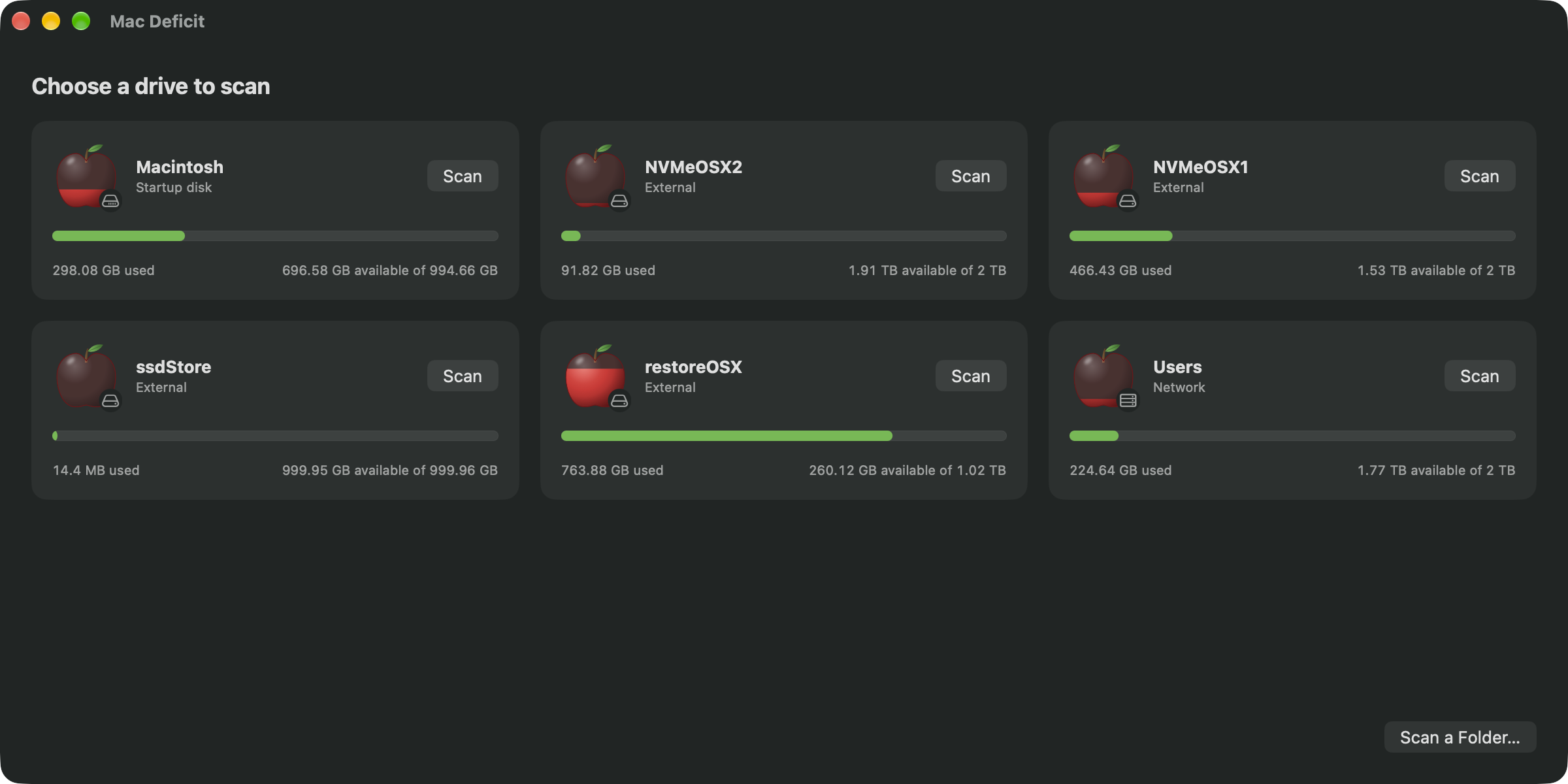
- See it at once: your main drive's health the moment the app opens, external drives a click away
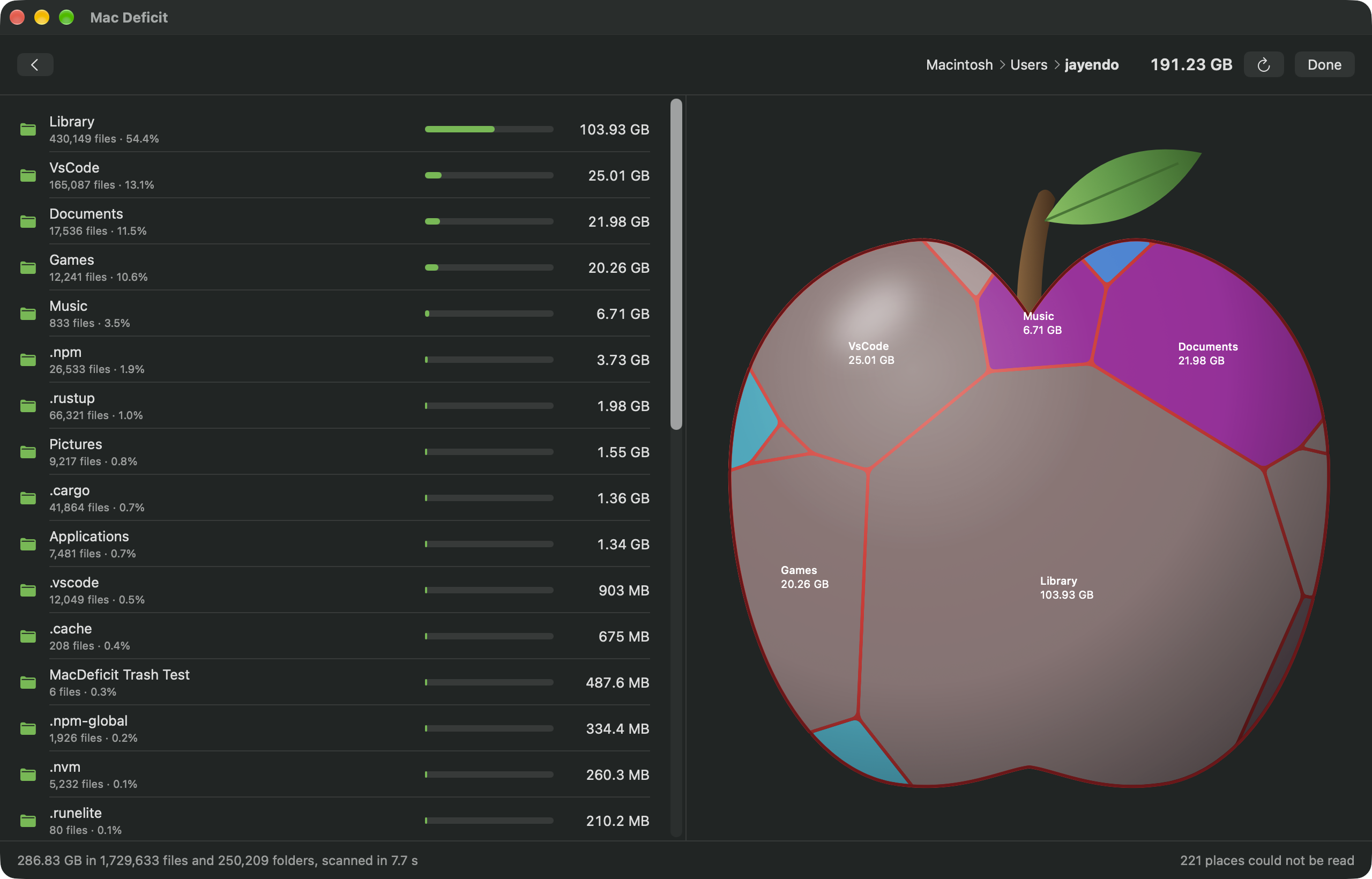
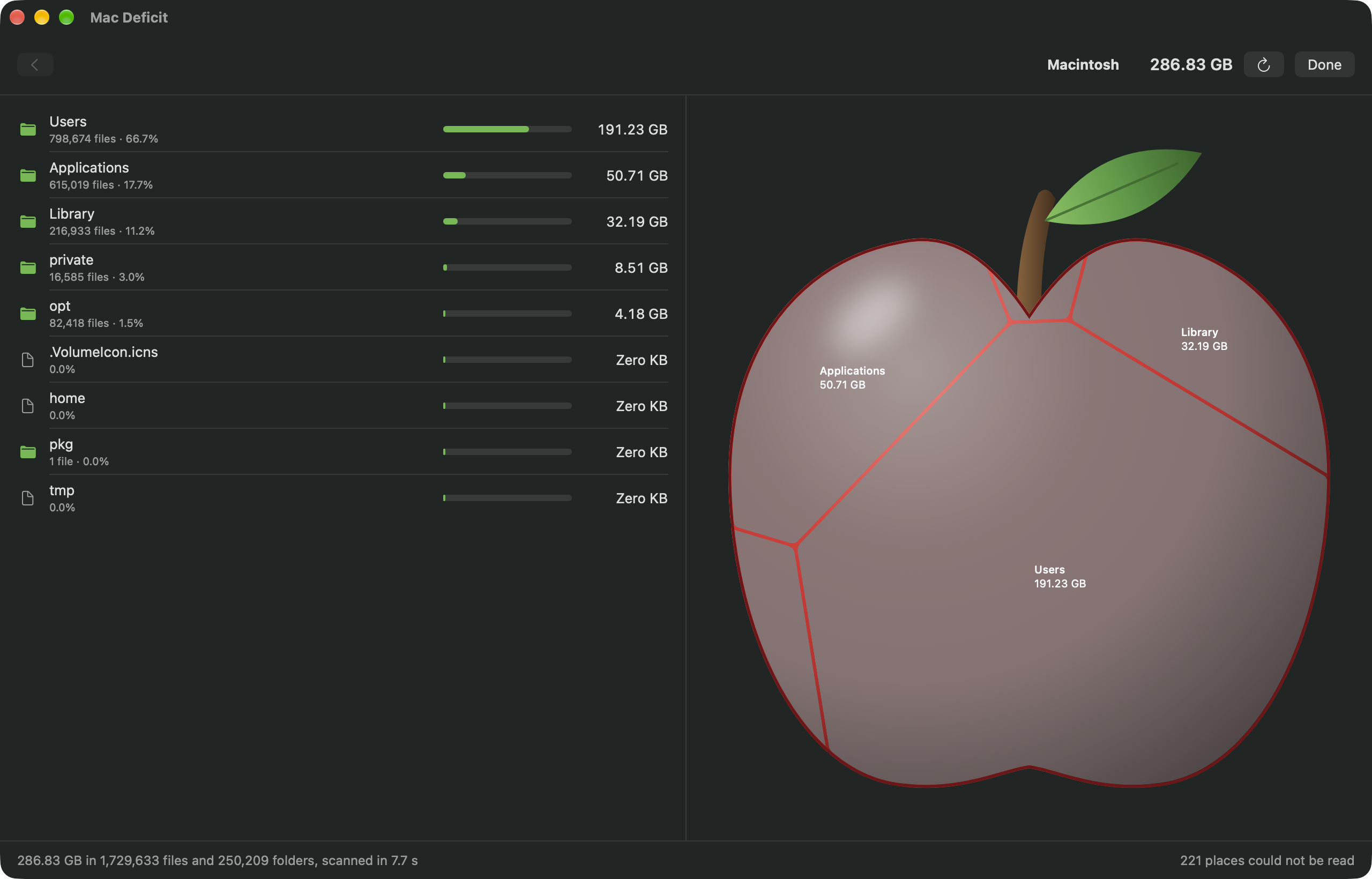
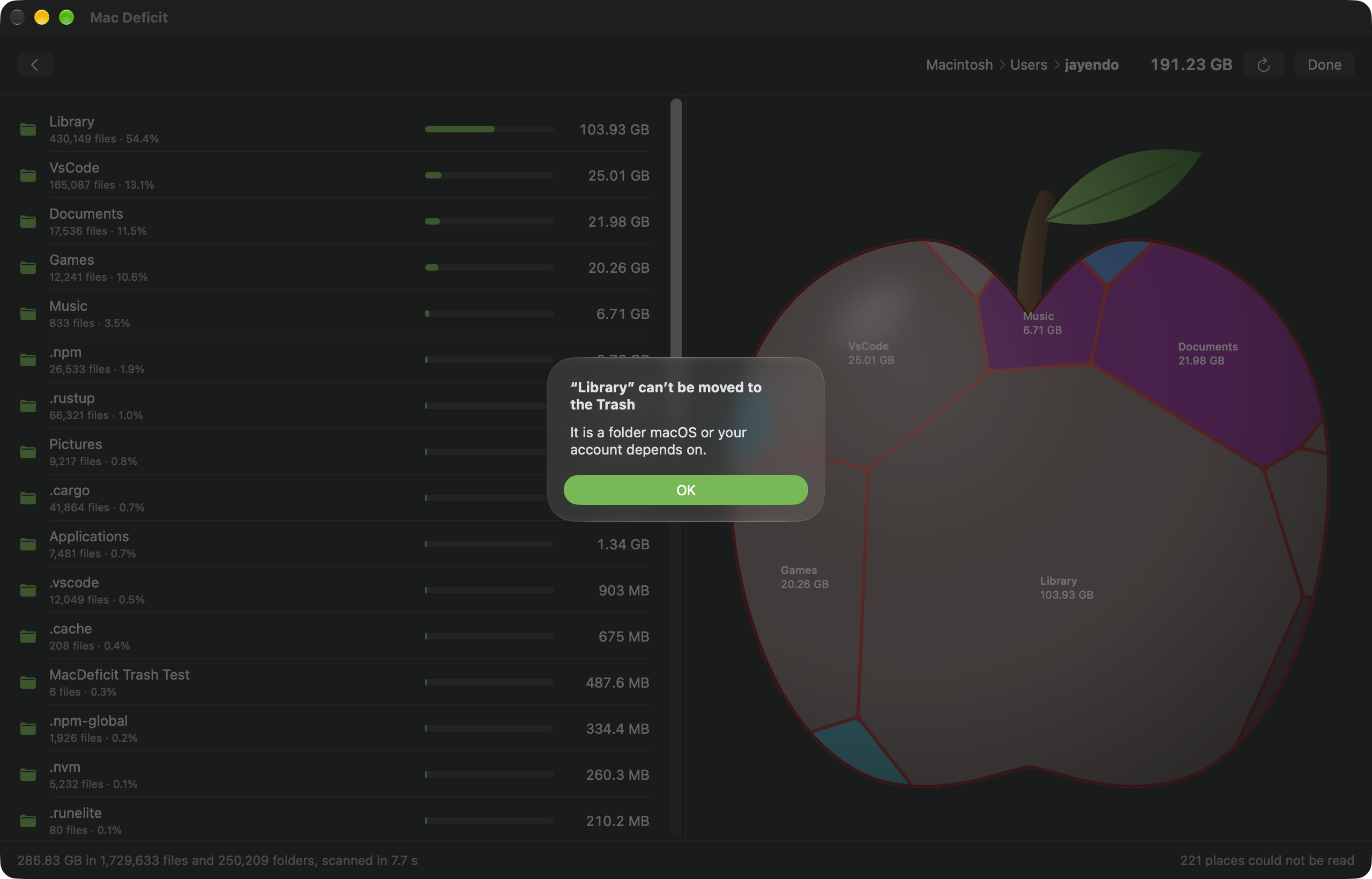
- The Apple Treemap: your drive drawn as an apple, the blocks inside it the folders and files eating its space. The bigger the block, the bigger the deficit
- Go deeper with a click: into any folder, block by block, or as a sorted list
- Act with confidence: Reveal in Finder, or move to the Trash after you see exactly how much space it gives back. Nothing is deleted for good without asking
- Private by design: everything stays on your Mac. No accounts, no analytics, no telemetry
An early build runs on Macs with Apple Silicon. It isn't available to download yet.
- Pick a drive: every drive on the Mac shown as an apple, filled as far as the drive is used, with its name, capacity and free space as Finder shows them, and when you last scanned it; or any folder, with the ones you scanned lately one click away. Plug in or eject a drive and the list follows
- Scan it fast: every processor core reads the drive at once; the drive's apple fills as the scan reads it, with how much has been counted and Cancel; a whole internal drive of 1.9 million files and folders in about eight seconds
- Trust the numbers: sizes are the space files really take, with hard-linked files and copies that share their space (Finder's Duplicate) counted once, and other drives left out; macOS's own data is counted, so a whole-drive scan adds up
- See where the rest went: after scanning a whole drive, a button at the bottom shows what was found of the drive's used space and opens the rest: macOS's own volumes, what could not be read, and the purgeable space macOS frees when it needs room, Time Machine's local snapshots among it
- Browse what you found: folders and files largest first, a breadcrumb back out, Reveal in Finder
- Find anything: type a name and see every match below the folder you are in, largest first, with where each one is and the space they take together; pick a kind (folders, files, videos, documents and more) to narrow it, or a kind alone to see the largest of that kind anywhere on the drive. Open what you found, see it in its folder, or move it to the Trash
- Clear space safely: move files and folders to the Trash from the list or the apple, one or several at once, their total size shown first; put them back with one click. Or delete them immediately from the File menu when you are sure, with the size first and Return cancelling; when another name or copy still holds a file's data, the app says the space is not freed. What your Mac needs is never offered, and the app says why
- See it as an apple: the Apple Treemap beside the list, a shaded apple with a stem and a leaf, filled with a cell for each folder and file, the biggest in its body and the smallest toward the tip, folders coloured by what fills them, names on the cells wherever they fit; hover for the details, click to go inside. While a folder is being laid out, a pale apple with a soft light passing over it, and the cells fade in. When you move something to the Trash, the other cells stay where they were and grow into its space
- Know your drive: while a drive is scanned, see what it is (its model, how it is connected, its format, how many items it holds), its space, and how fast it is reading and writing; afterwards it is all in the space button with what the drive read and wrote during the scan
- Stay up to date: change something in Finder after a scan, put a folder back from the Trash, and the app notices: one click on Refresh catches up without scanning everything again, showing how far it got, with Cancel. If the folder you scanned is moved or deleted, the app says so. It speaks up only when enough has changed, so macOS writing its logs and caches all the time does not set it off
- Grant Full Disk Access: the app explains why it helps and opens the right page of System Settings, or carries on with limited access and lists what it could not read
- Make it yours: Settings for light or dark, sizes in decimal units as Finder or binary units as Terminal, and the recent scans it keeps; the window and the list's width stay as you left them
- Use it with VoiceOver: the drives, the list, every cell of the apple and every action have spoken labels
- Know when something went wrong: if the app ever stops unexpectedly, it says so the next time it opens and shows you the report, which stays on your Mac
- Swift and SwiftUI for the interface, the Apple Treemap and macOS itself
- Rust (2024 edition) for the scanner: its own parallel walk over macOS's
getattrlistbulk, which reads a folder's entries in batches - UniFFI to connect the two: the Swift app calls the Rust scanner directly, in the same process
- Everything on device: no network, no telemetry
Features
- While a drive is scanned, a quiet card below the apple tells what the drive is (its model, how it is connected, its format, how many items it holds), its space, and how fast it is reading and writing each second
- After the scan, the drive's details and what it read and wrote during the scan, on average and at its fastest, are kept in the space button's popover
Enhancements
- A Refresh shows how far it got, the files and space read so far, and can be stopped with Cancel (⌘.); the results stay as they were
- When the folder you scanned is moved or deleted, the app says so at once: the results show it as it was scanned
- Deleting a file immediately says how much space it really frees: deleting one name of a file that has another (a hard link) or a copy sharing its data frees nothing while the other stays, and the app now says so before and after
Fixes
- The "Changed on disk" note goes away when the change is undone, instead of staying until a Refresh
- Moving things to the Trash, deleting them or putting them back while the app checks the disk no longer leaves a stale Refresh note behind
- An item that could not be put back stays on the note, so you can try again; one put back into a folder read since is shown again
- After the apple is laid out again, a click acts on nothing until you move the pointer, never on another item than the one you saw
- Show in Enclosing Folder selects the item even in a folder with more than 1,000 items
- Going Back after a search no longer shows the last folder's hits for a moment
- Whether a scan could see everything is decided when it starts, so the results say what that scan could read
Fixes
- A folder's colour in the apple follows what it holds now: after a move to the Trash, a Put Back or a Refresh, a folder is coloured by the kind of file that fills it today, not the one it was scanned with
- A folder the app cannot open no longer makes it offer Refresh again and again, and keeps its place in the list of what could not be read; a new folder that cannot be opened shows as such
- When the folder you scanned is moved or deleted, the app no longer offers a Refresh that would empty the results; they stay as they were
- Closing the results stops a Refresh still reading the disk; a Refresh never waits behind another
- A folder that leaves the results takes with it the places inside it that could not be read
On the source. This page mirrors a private repository. The milestones, changelog and narrative come from the project's own README and CHANGELOG, and the statistics are read live from the GitHub API, so it reflects the state of the work rather than a summary written after the fact. No source code is published here. Screenshots, the roadmap and a place for feedback are public at github.com/rawdata369/macdeficit-app.